
Turn a video clip into a sprite sheet
Upload a clip, select the motion you need, and turn its frames into a packed sprite sheet. Preview the animation and refine the background before exporting files for your project.
- Frame-by-frame preview
- Chroma key and auto crop
- PNG or engine-ready ZIP
From moving footage to reusable frames
These illustrations show how successive poses from a short clip can become a sprite atlas. Your own export is made from the video you upload.
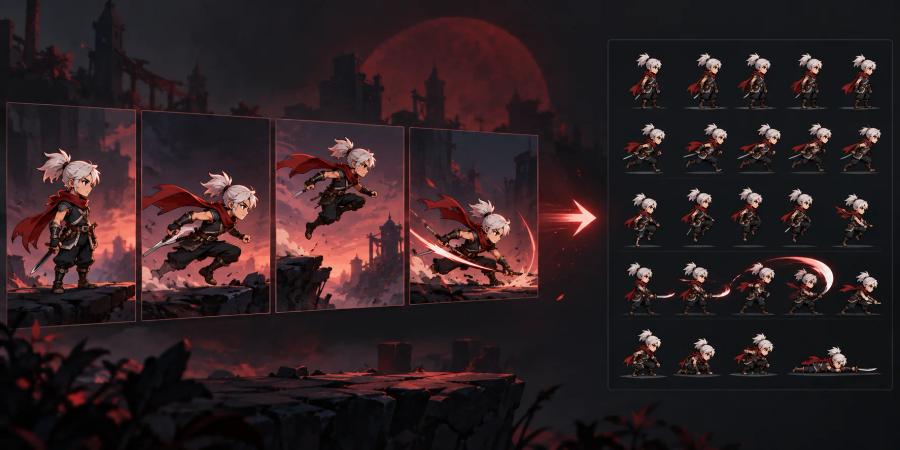
Choose the motion
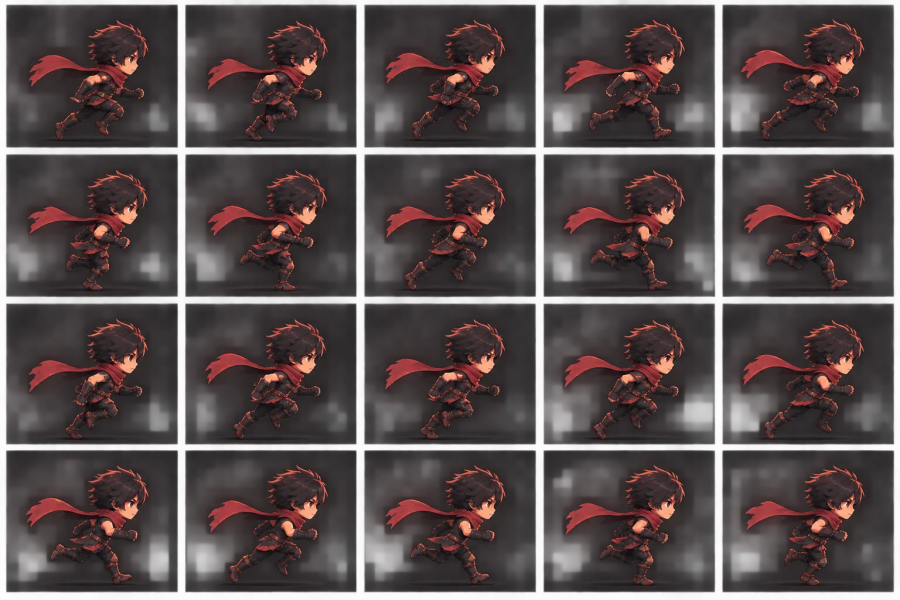
Build a sprite atlas
How to make a sprite sheet from video
1. Upload a playable video
Choose a video from your device or drop it into the tool. The browser decodes the clip into frames for preview.
2. Pick your frame range
Set the start and end frames, then choose a preset or adjust the frame count, sampling rate, and maximum edge size.
3. Refine the result
Switch between animation, sheet, and comparison previews. Use chroma key for a solid-color background, then try auto crop or power-of-two packing as needed.
4. Export your sheet
Download the sprite sheet as PNG, or export a ZIP package for Unity, Cocos, or a generic workflow.
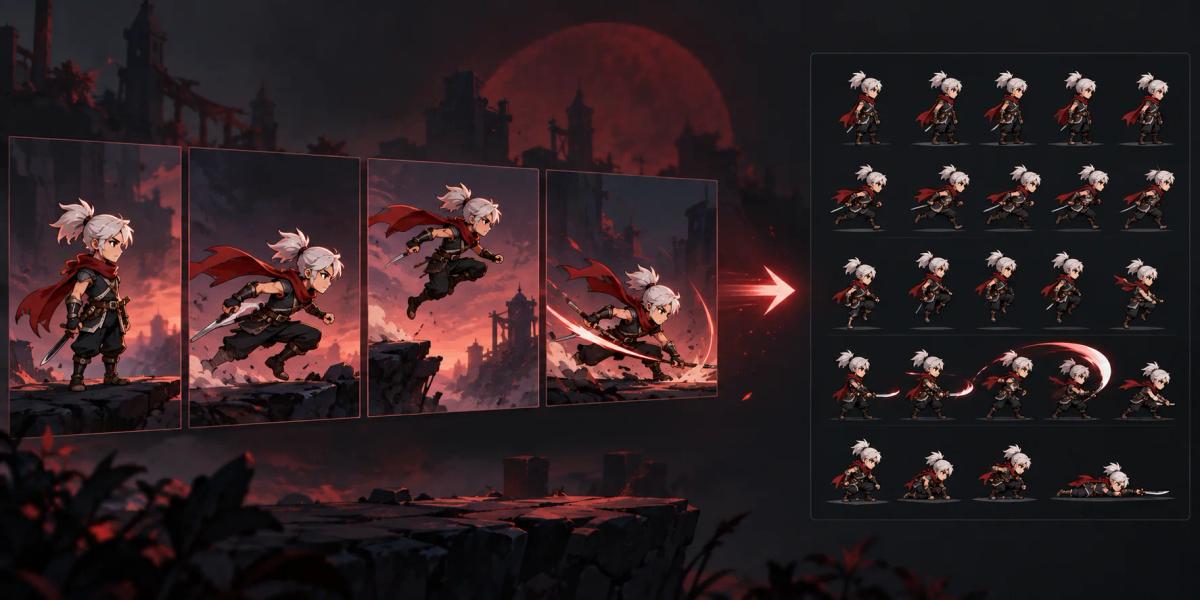
Keep the frames that carry the action
Trim the clip to the useful moment and sample a smaller set of frames. The animation preview helps you check timing before you pack the sheet.
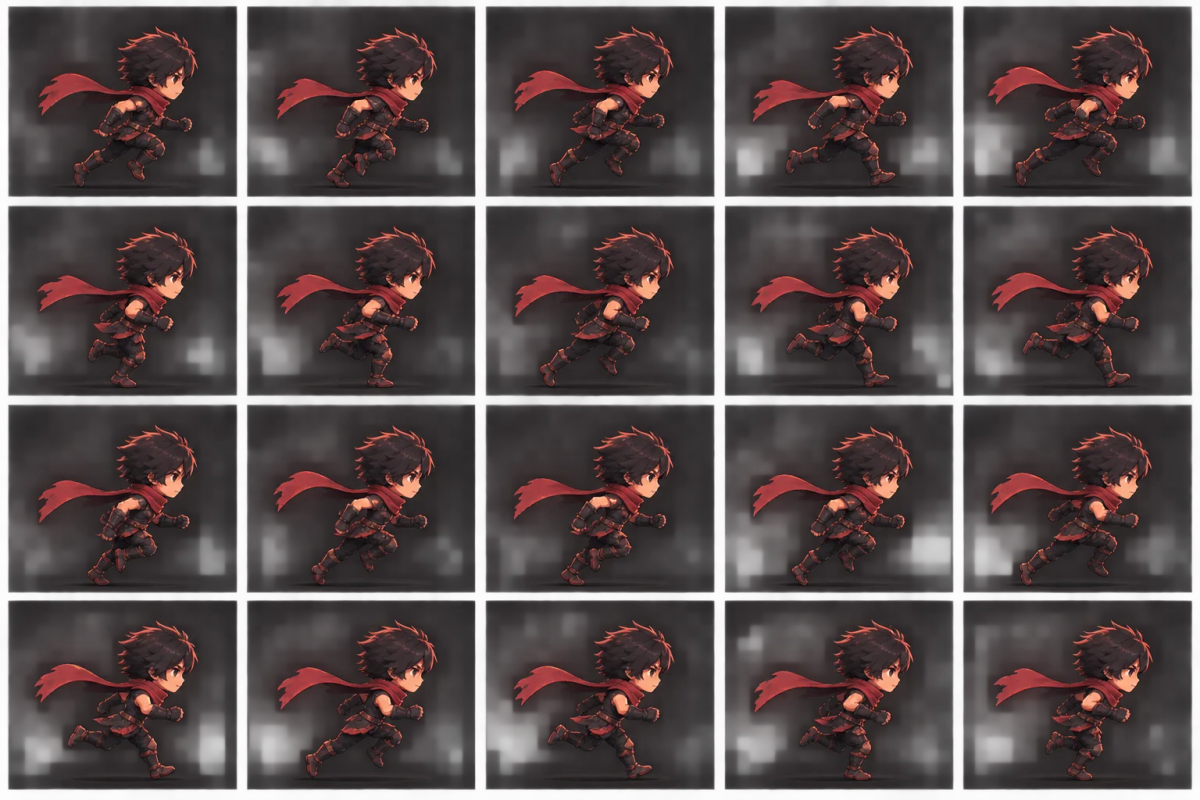
Preview a clean, compact sprite atlas
For footage with a solid backdrop, adjust chroma key color, similarity, smoothing, and spill. Auto crop can remove transparent margins; power-of-two packing is available when your workflow needs it.
Video to sprite sheet FAQs
Which video files can I use?
The picker accepts video files. Whether a particular format can be decoded depends on your browser, so use a clip your browser can play.
Can I control the number and size of frames?
Yes. Trim the range and choose a preset or custom frame count, sample rate, and maximum frame edge before export.
Can I remove a solid-color background?
Use chroma key and tune the color, similarity, smoothing, and spill controls. Compare the source and export previews to check the edges.
What can I download?
Download a PNG sprite sheet, or choose Unity, Cocos, or generic export to download a ZIP package.