
Explore a new face in your photo
Upload a target photo and a face reference to create one face-swapped image.
- Target photo + face reference
- Before-and-after comparison
- Download one edited image
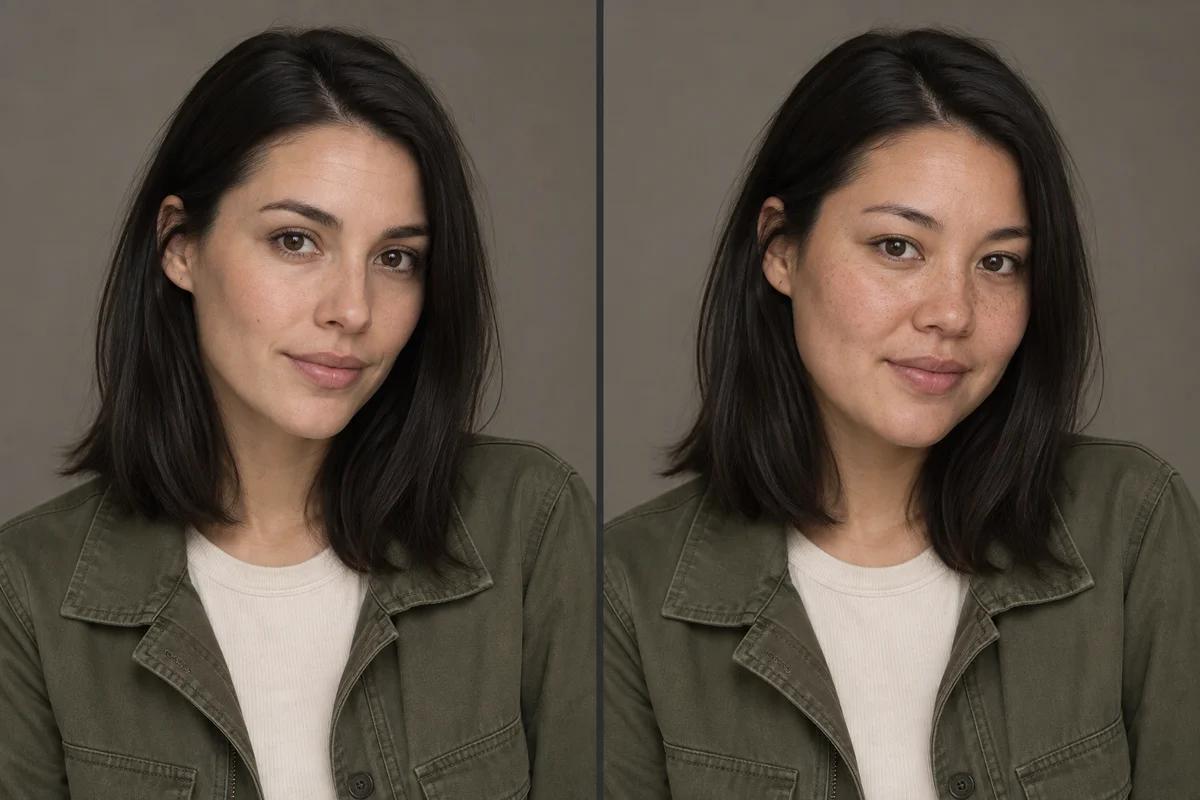
A new facial identity, guided by your reference
Upload the photo you want to edit and a second image of the face you want to use. The editing instructions ask the AI to transfer facial identity while retaining the target hairstyle, pose, clothing, and background. This is generative editing: details may be redrawn, and the result is not guaranteed to match perfectly. The comparison shown here is an AI-created illustration, not a recorded tool result.
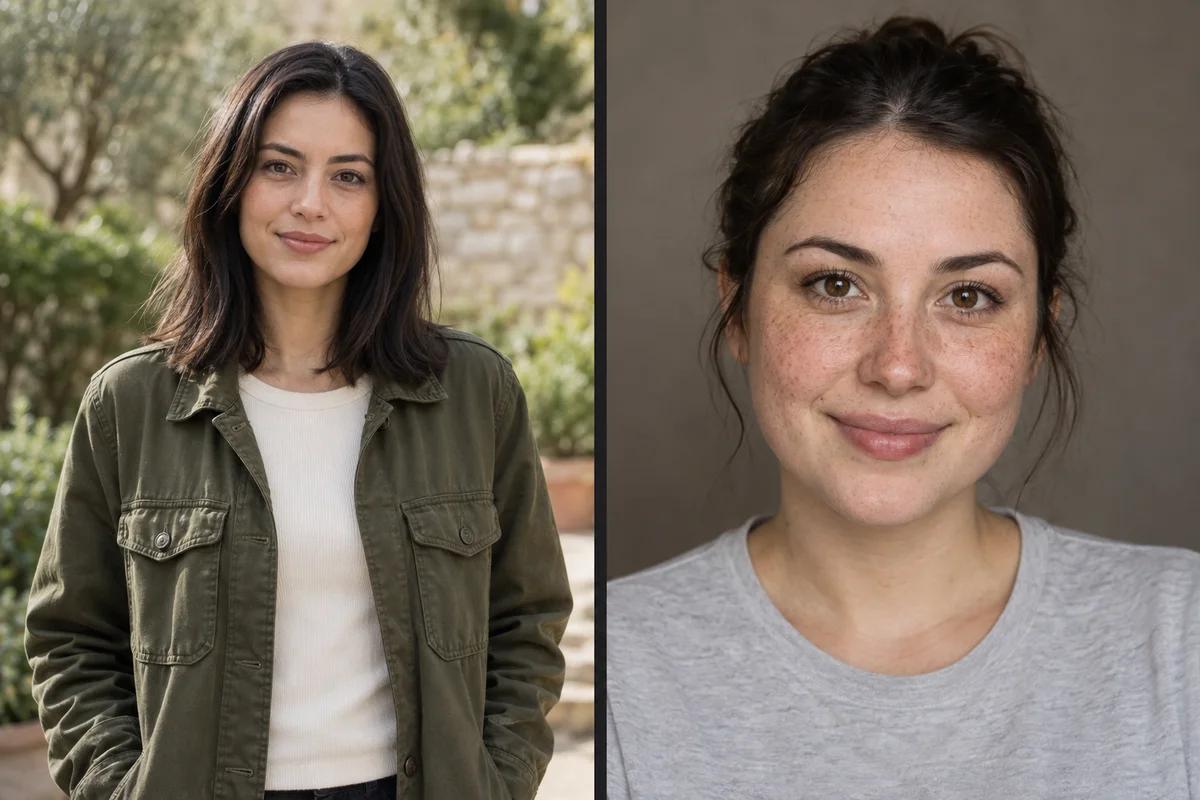
Start with two clear, single-person photos
The target photo supplies the scene; the face reference supplies the identity. Choose images with a clearly visible face, similar head angles, and even lighting. Avoid sunglasses, hair across the face, heavy blur, or multiple people. Each upload can be PNG, JPG, or WebP, up to 20 MB. These fictional input portraits are illustrative examples. Only use photos and likenesses you have permission to edit.
How to swap a face in a photo
1. Upload the target photo
Choose the single-person photo whose scene, clothing, and pose you want to retain. Use a clear PNG, JPG, or WebP up to 20 MB.
2. Add the face reference
Upload a second photo with the facial identity you want to use. Both images are required. Make sure you have permission to use both photos and the depicted likenesses.
3. Review model and output settings
Choose an available two-image editing model. Open Output settings to select an aspect ratio and resolution when the model supports them. Review the estimated credit cost, then select Generate face swap.
4. Compare and download
Inspect the face, edges, lighting, and surrounding details. Use the before-and-after slider when the original photo is available, then download the edited image. If you return to an unfinished task, use Continue checking or task history rather than submitting it again.
Use face swapping for consensual creative edits, visual experiments, or your own portraits. Do not use it to impersonate someone, mislead viewers, or create harmful images. Label edited images where their authenticity could be misunderstood. Before sharing, review the likeness, skin texture, hairline, and background; AI editing can change details beyond the face.
Face swap FAQs
What images do I need?
You need two images: the target photo to edit and a face reference. Use clear, single-person PNG, JPG, or WebP photos up to 20 MB each.
Will the rest of my photo stay unchanged?
The instructions ask the model to preserve the target hairstyle, body, pose, clothing, and background. However, AI editing may redraw details, so inspect the whole result rather than assuming every pixel is unchanged.
Can I swap several faces or edit a video?
This page is designed for one person in a still photo and returns one edited image. It does not provide multi-face selection or video face swapping.
Do I need to write a prompt?
No. The tool supplies the face-editing instructions automatically. Upload both photos, choose an available model, and review output settings and the estimated cost.
How do I compare the result with the original?
When the original target image is available, drag the before-and-after slider in the result preview. If that original is unavailable, you can still view and download the edited result.
What if I leave while a task is running?
Return through task history or the task link to check the existing request. Continue checking resumes result lookup; it does not submit a new generation. Starting a new request is a separate generation, so review its estimated cost.