

Bring your story from idea to screen
Turn an idea or script into a storyboard, add voices, and generate a rough cut to refine on the timeline.
- Editable scripts
- Linked characters and scenes
- Shot-by-shot video creation
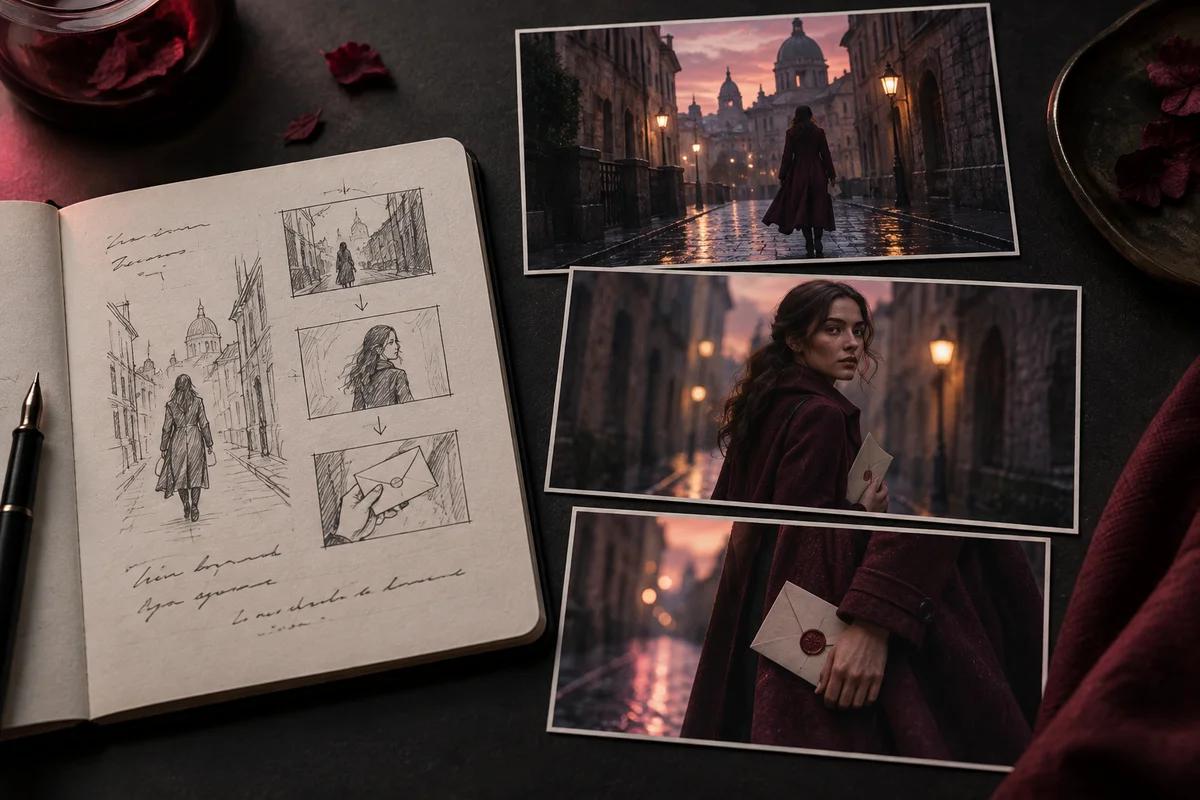
Shape your idea into a story you can refine
Start with a story idea and turn it into an editable script. Review the plot, dialogue, and shots, then use creative chat to make revisions before generating video. The illustration shows how one scene can be explored through an establishing shot, a character shot, and a detail shot.
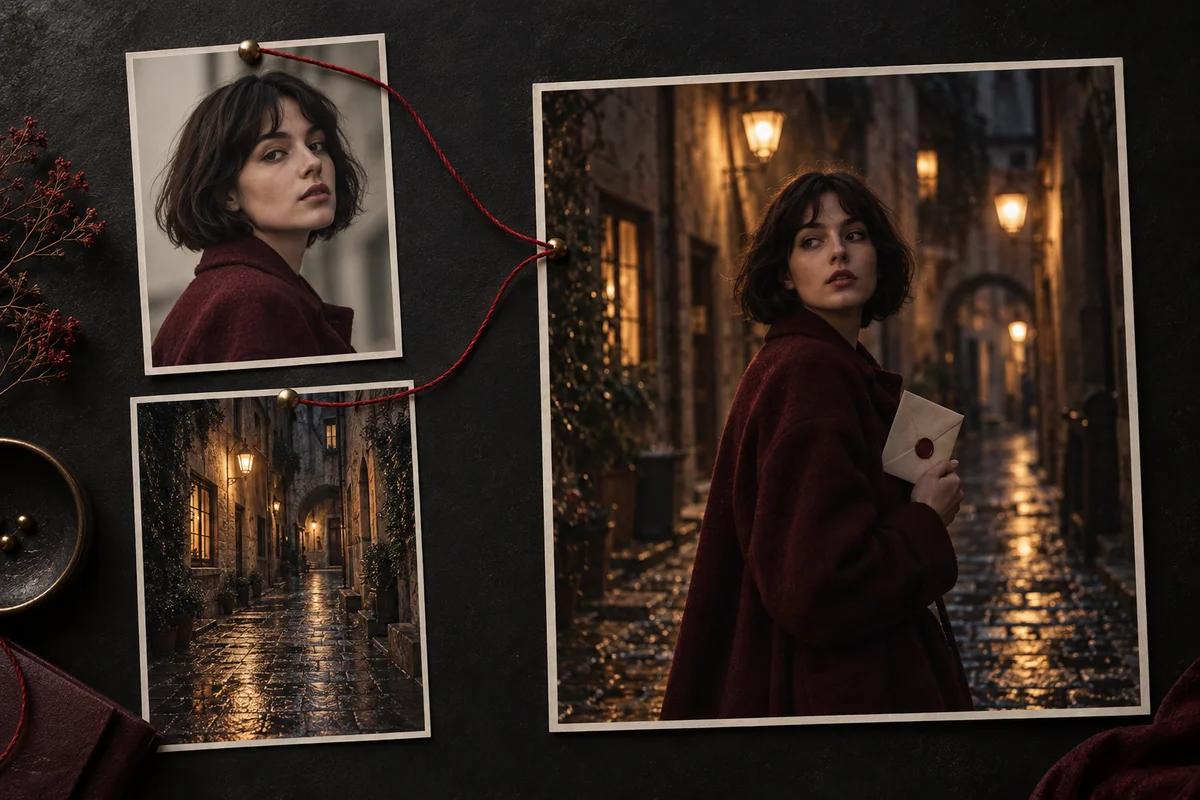
Keep your characters and scenes connected
Use @ to reference characters and scenes in your brief, then link the script to the assets you want to use. Review their appearance and the assets assigned to each shot before building the storyboard. This reference-board illustration shows a character and a location brought together in one scene.
How to create with Story Studio
1. Write the script
Describe your story and use @ to reference characters and scenes. Refine the plot and dialogue after generation.
2. Link characters & scenes
Connect script characters and locations to assets. Confirm their appearance before building shots.
3. Build the storyboard
Turn your script into shots and review linked assets. Refine framing, shot sizes and pacing.
4. Edit your video
Generate clips, then bring them into the editor. Arrange, preview and export your film.
Start with the core idea, the main characters, and a clear setting. Describe what changes during the story and the mood you want. Use @ to reference characters or scenes, then review the generated script and refine the plot or dialogue through creative chat.
Story Studio FAQs
How is Story Studio different from Video Studio?
Story Studio organizes a story into a script, linked assets, and multiple shots before video editing. Video Studio is a separate workspace for generating a video from a prompt or reference media.
Can I revise the script after it is generated?
Yes. Continue the creative chat to revise the story and shots, or open the script editor to make and save changes. Future generation uses the current saved script.
Can I choose the characters and scenes?
Yes. Use @ to reference assets in your brief and link script characters or locations to assets before building shots. Unbound assets may be created during generation and consume credits.
Do I have to generate every shot at once?
No. You can choose all shots or select specific shots to generate. Review each result and refine the shots you want to change.
What happens after the clips are generated?
Review the clips in video production, then bring them into the editor to arrange, preview, and export your film.