
Museum Sneaker Specimen
No reference needed
Explore editorial objects with GPT Image 2. Start with one of six original concepts, customize the prompt and review your settings before generating.
Need a starting point?
View all templatesExplore prompts for products, portraits, worlds and graphic design. Choose a starting point and make it your own.
No reference needed
No reference needed
No reference needed
No reference needed
No reference needed
No reference needed
These creative starting points describe what to aim for. Review each generated result and refine the prompt to suit your project.
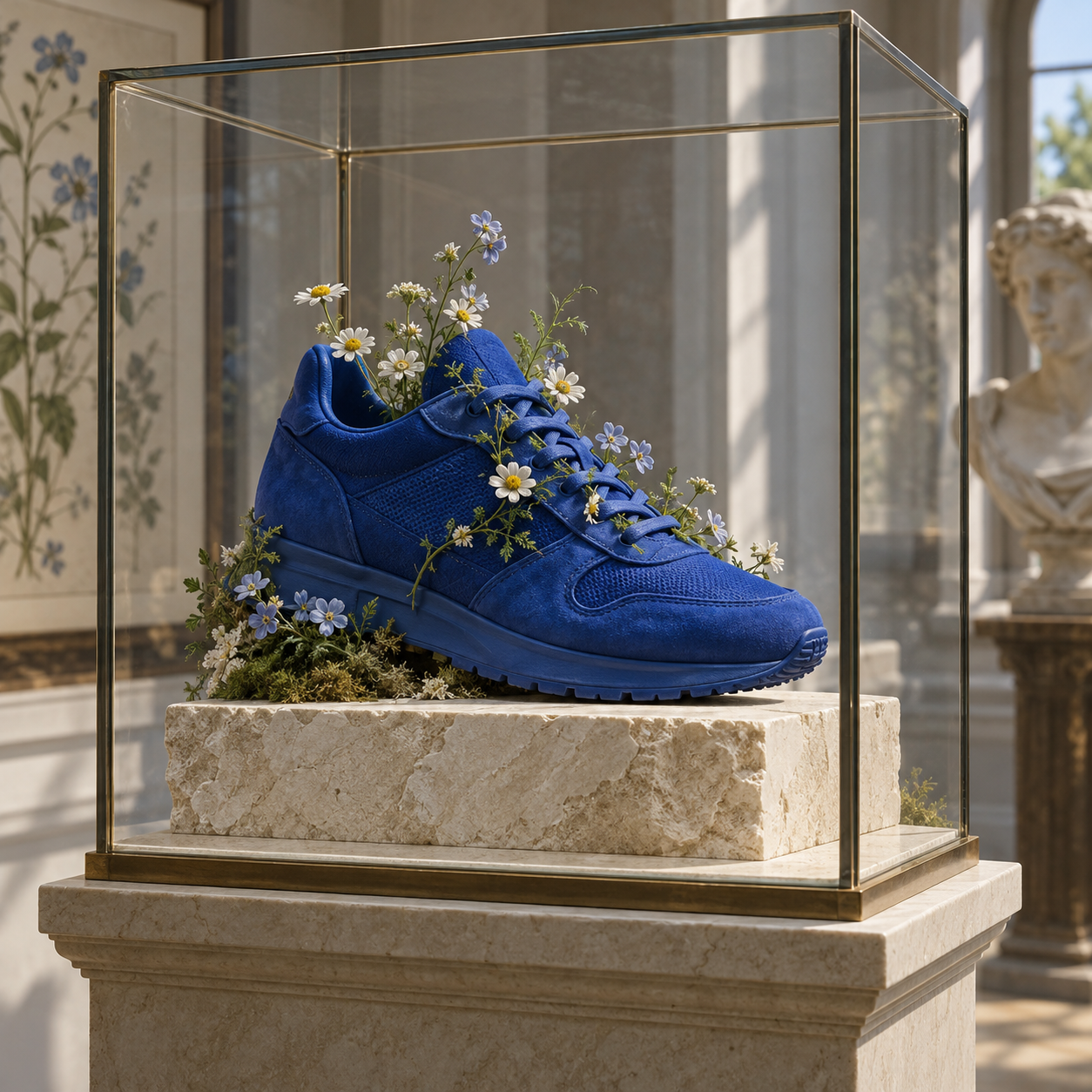
Describe the product silhouette, surface, camera angle and light. Compare the result with your brief, especially small details and reflections.
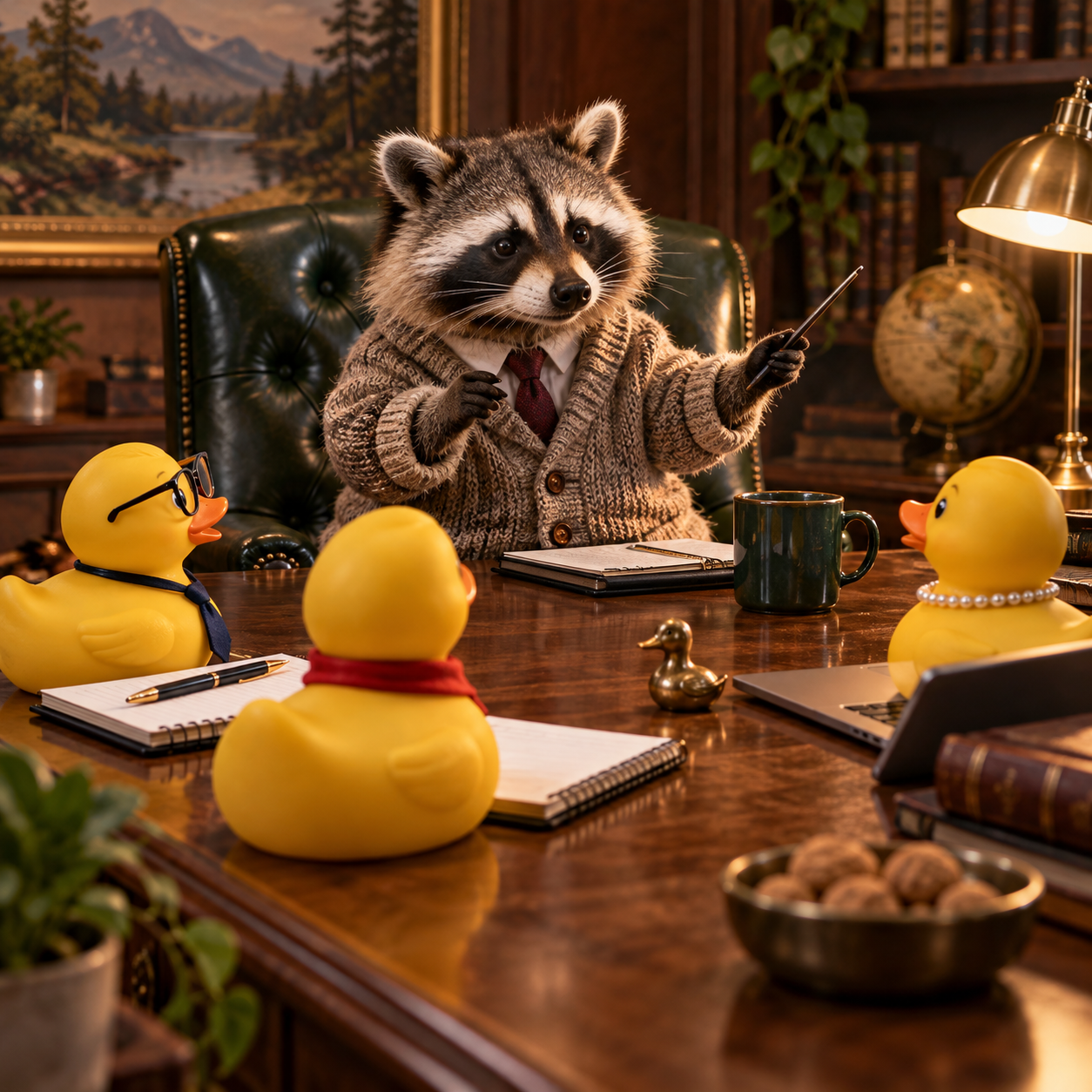
Set the purpose, subject positions and composition, then inspect the result against those requirements.
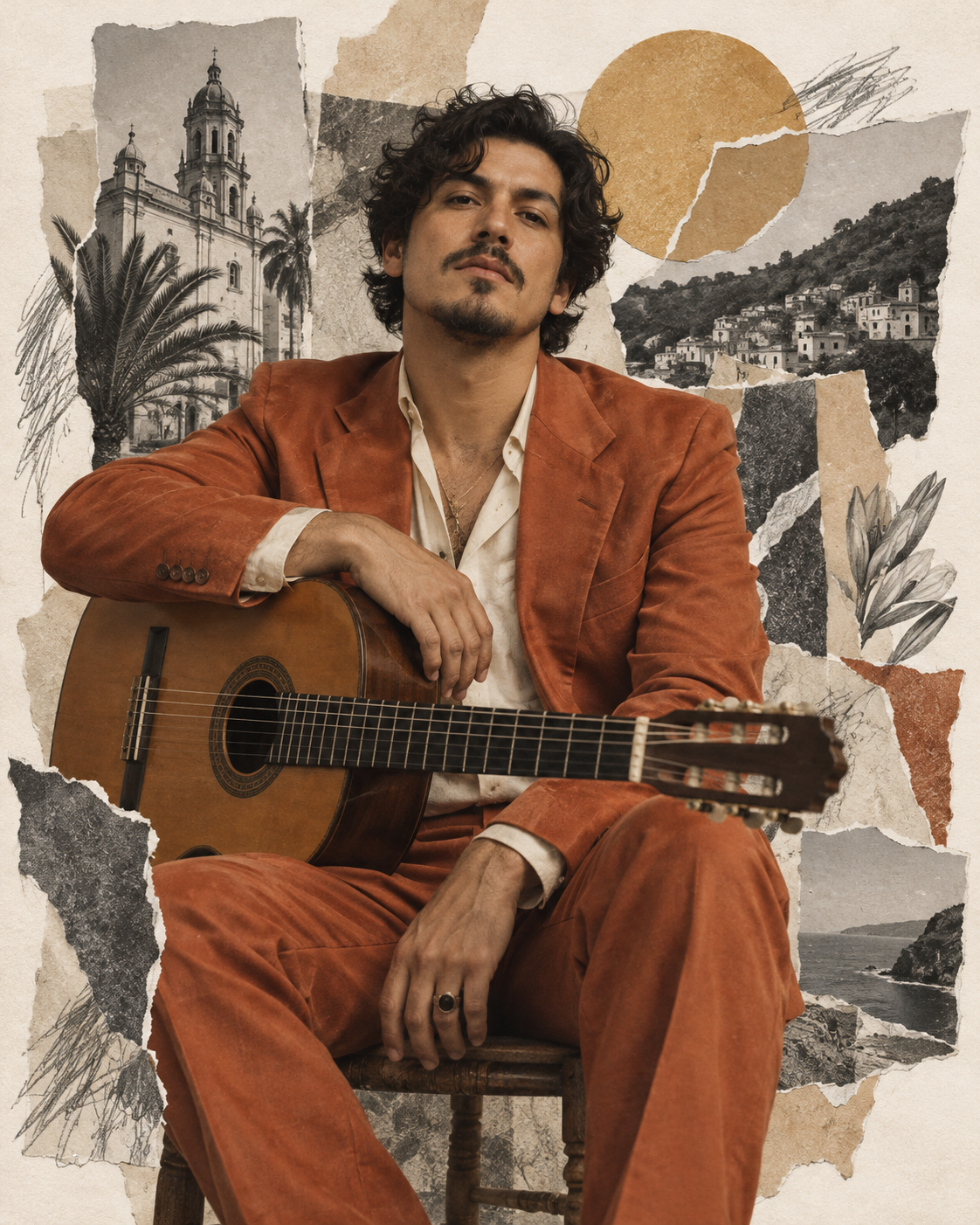
Describe a fictional subject, wardrobe, setting and photographic mood. Keep the pose and small details clear, then inspect the result before sharing.
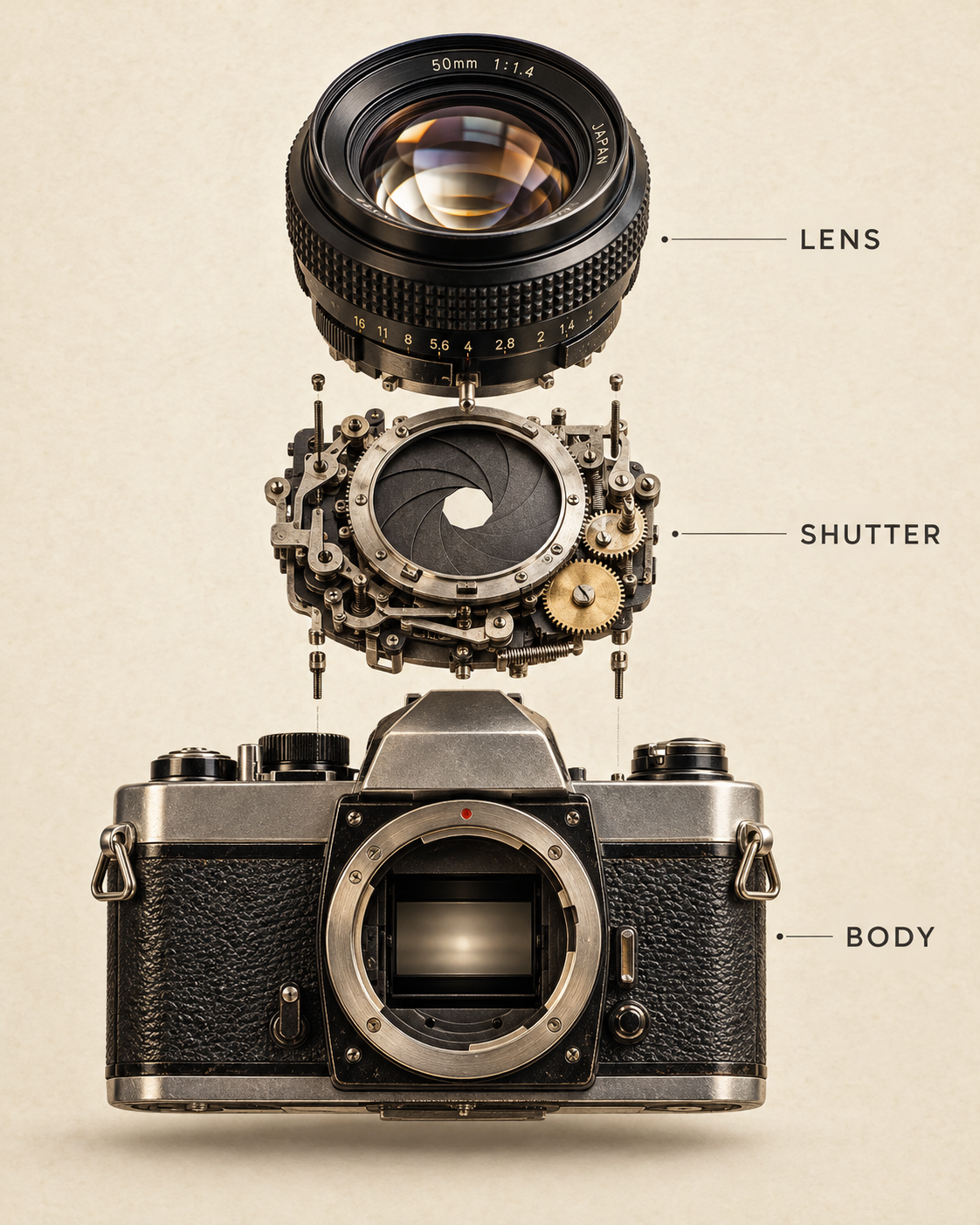
Supply the wording first, then describe the hierarchy, typography and spacing. Inspect every generated letter before using the image.
Describe what the image is for, or apply a template. Add the subject, setting, camera angle and important details.
Choose from the options shown for this model. Review the prompt, supported aspect ratio and credit estimate before submitting.
Check the result against your requirements. Update the full prompt with one focused change and generate again. Keep your reference attached when editing.
Say whether it is a product ad, profile portrait or phone-friendly poster. The intended use helps define the composition.
Name materials, colors, lighting and a camera view. Use “a low-angle close-up of brushed metal” rather than “make it better.”
Describe the setting first, then place the main subject and supporting elements. Tell the model where each belongs.
Prefer “an empty table with room for a caption” to a long list of things to exclude. Describe the desired result directly.
Write and check the headline or labels first. Include them exactly, with the type style and location, then inspect the generated lettering.
Compare the image with your goal. Change one instruction in the full prompt and generate again; keep the reference attached for edits.
Write a complete prompt or apply one of the concepts on this page. The creator stays bound to this model and shows its current options and credit estimate.
Explore product scenes, portraits, posters, infographics and imaginative worlds. Choose a template, then adjust its subject, composition and lighting to fit your idea.
The template fills the prompt, mode and supported aspect ratio. It does not switch models, upload the example image or start a paid generation.
Choose Use Template on an example, or a Try button in the model features section. The creator fills the full prompt, creation mode and settings. Add your own reference if required, review the prompt, then select Generate Image. Applying a template does not start a generation.
View prompt opens the full prompt with a Copy Prompt action. Use Template fills it into the creator. Use Undo to restore your previous prompt and settings before making further edits.
Reference editing depends on the workflows currently available for this model. Check the creator's mode and input requirements. These gallery concepts start from text and do not require the example image.
Describe the purpose, subject, composition, materials and lighting. Give complex scenes an ordered set of instructions. For edits, state what to change and keep. For graphics, supply the exact wording and layout. Review the result, then revise one requirement at a time.
Review the credit estimate beside Generate Image before submitting. The cost depends on the selected settings. Any available trial allowance is shown in your account. Generate Again creates a new paid task.
Use the aspect ratios, quality options and reference limits shown in the Vidma creator; they determine what is available for your generation. Unsupported template settings must be selected again before generating.
Refine Prompt returns to the full prompt for a new generation; it does not carry over a chat history. For a reference edit, keep your photo attached.
Start with your own idea, or choose a template and make it yours.