
Give your image a new direction
Upload an image and edit it with natural language, with an optional visual reference.
- Edit with natural language
- Optional visual reference
- Review and download
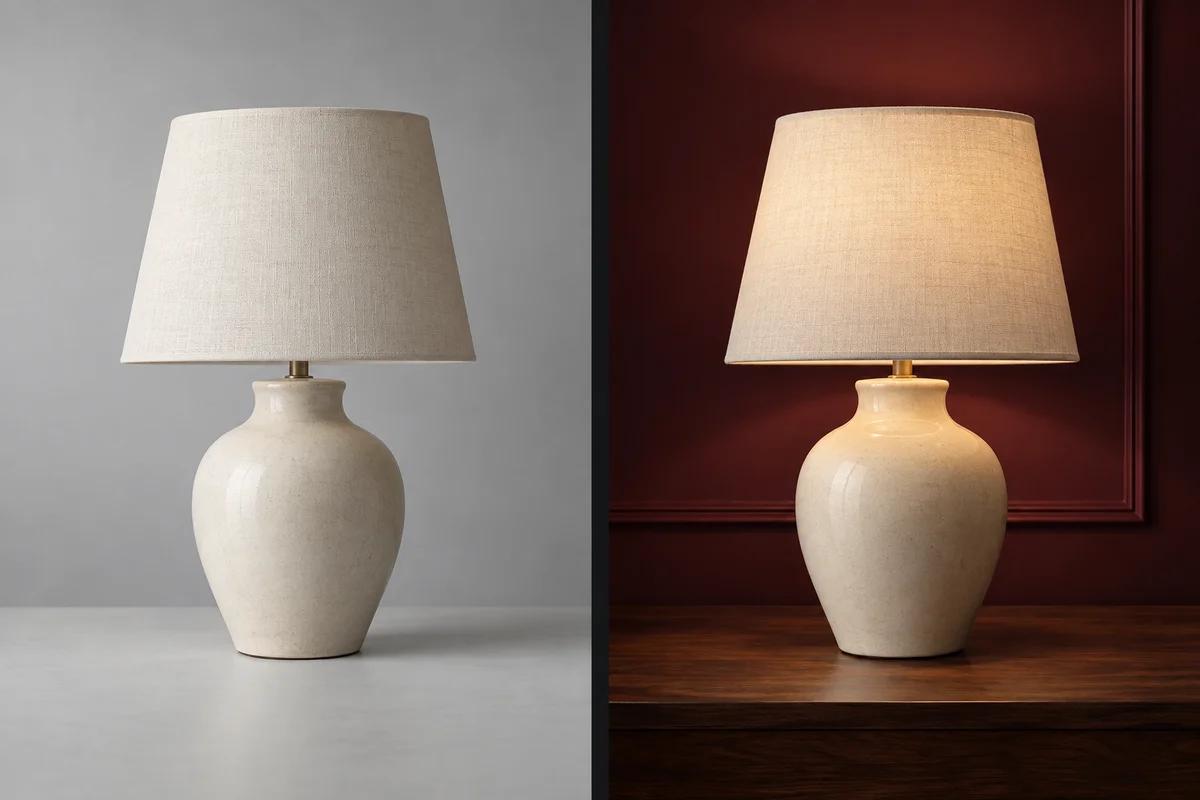
Describe the change, keep the intent clear
Start from your own image and tell the model what should change: a background, lighting, color, material, or overall visual style. Also describe the subject and composition you want to keep. The illustration explores a lamp in two settings; it is a conceptual AI-created example, not a recorded product result. Details may change during generation.
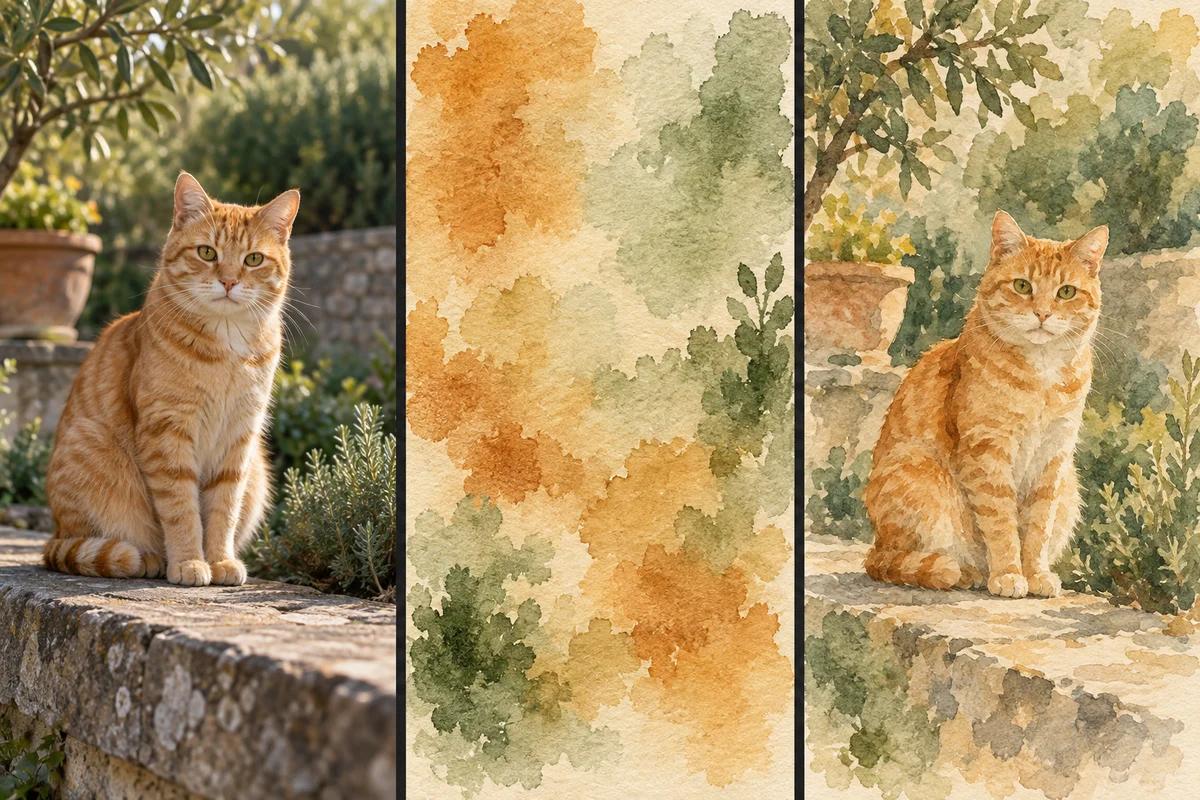
Add a reference when words are not enough
A second image can help communicate style, character, composition, or material. Explain which qualities to borrow from the reference and which parts of the source to preserve. Adding a reference uses the multi-image workflow, so available models and settings may change. This cat and watercolor board is an illustrative style-exploration concept; results vary.
How to edit an image with AI
1. Upload your source image
Choose, drop, or paste a clear source image. Use an image you have permission to edit. Add a reference image if you want visual guidance; it is optional.
2. Write the edit instruction
State what must stay and what should change for a more reliable result.
3. Choose the model and output settings
Choose an available model, aspect ratio, and resolution. Options depend on the model and whether a reference is present. Review the estimated credit cost before generating.
4. Generate, compare, and refine
Select Edit image. Compare the source and edited result in the preview, inspect the details, and open or download the result. Use Keep editing to refine your instruction or inputs for another attempt.
Try a focused instruction such as: "Keep the lamp shape and camera angle. Change the background to a burgundy interior and the table to dark walnut, with warm natural lighting." Ask for one clear change at a time, then review the result before adding more edits. AI generation may alter details you intended to preserve; inspect important faces, text, edges, and proportions before sharing.
AI image editor FAQs
Do I need an existing image?
Yes. This page edits a source image using your instruction. If you want to create an image from a text idea without a source, use Image Studio instead.
Is the reference image required?
No. A source image and an edit instruction are required; a second reference is optional. Use it to communicate visual qualities and explain its role in your instruction.
What should I write in the instruction?
Say what should change and what should stay. Name the subject, the requested change, and any relevant lighting, color, material, style, or composition details. Specific instructions are easier to review and refine.
Will every original detail stay unchanged?
Not necessarily. This is AI image generation, not a pixel-exact editing guarantee. Even when you request preservation, the model may change details. Compare the output with the source before using it.
Why do the available models or settings change?
A source-only edit and an edit with a second reference use different image-generation modes. The available model, aspect-ratio, and resolution options depend on the selected workflow and model capabilities.
How do credits and downloads work?
The panel shows the estimated credit cost for your model and settings before generation. Once a result is ready, you can open or download it using the result actions.