
Create images from an idea—or reimagine a photo
Describe a scene in your own words, choose an image model, and start creating in Vidma Image Studio. Have a photo already? Add it as a reference and use a prompt to explore a new direction while keeping your starting point in view.
- Create from text
- Start with a reference image
- Explore different visual directions
Visual ideas to explore
Try a different subject, lighting setup, or style. These examples are inspiration for prompts you can adapt in Image Studio.
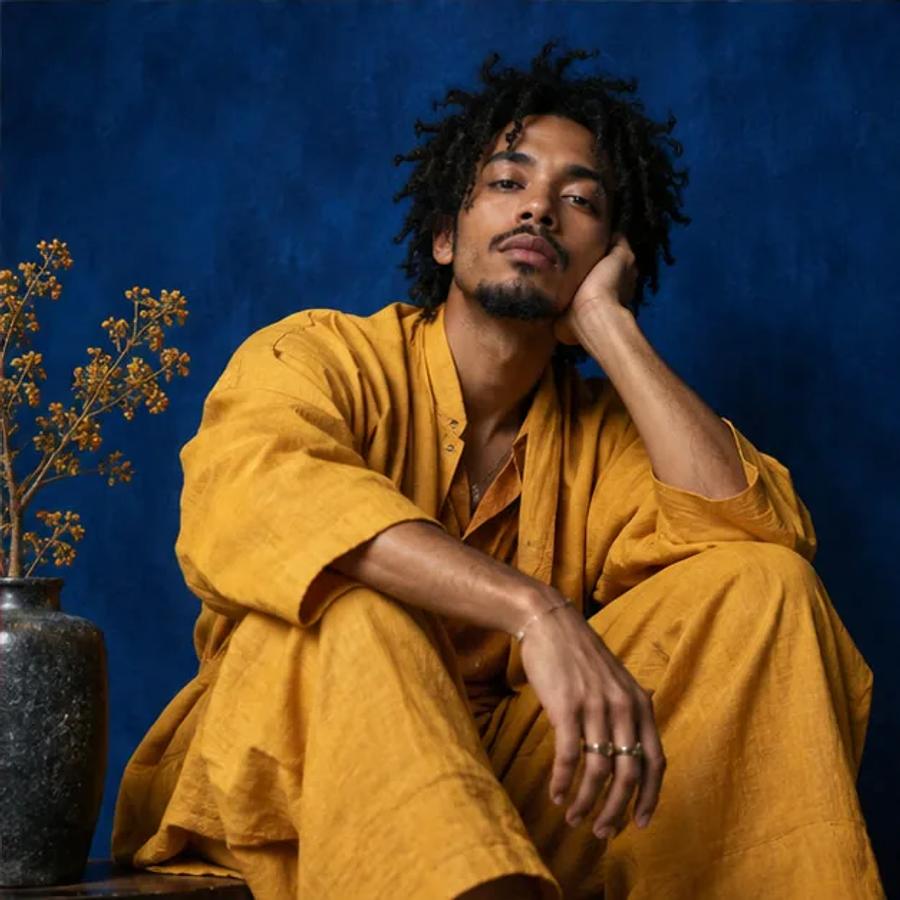
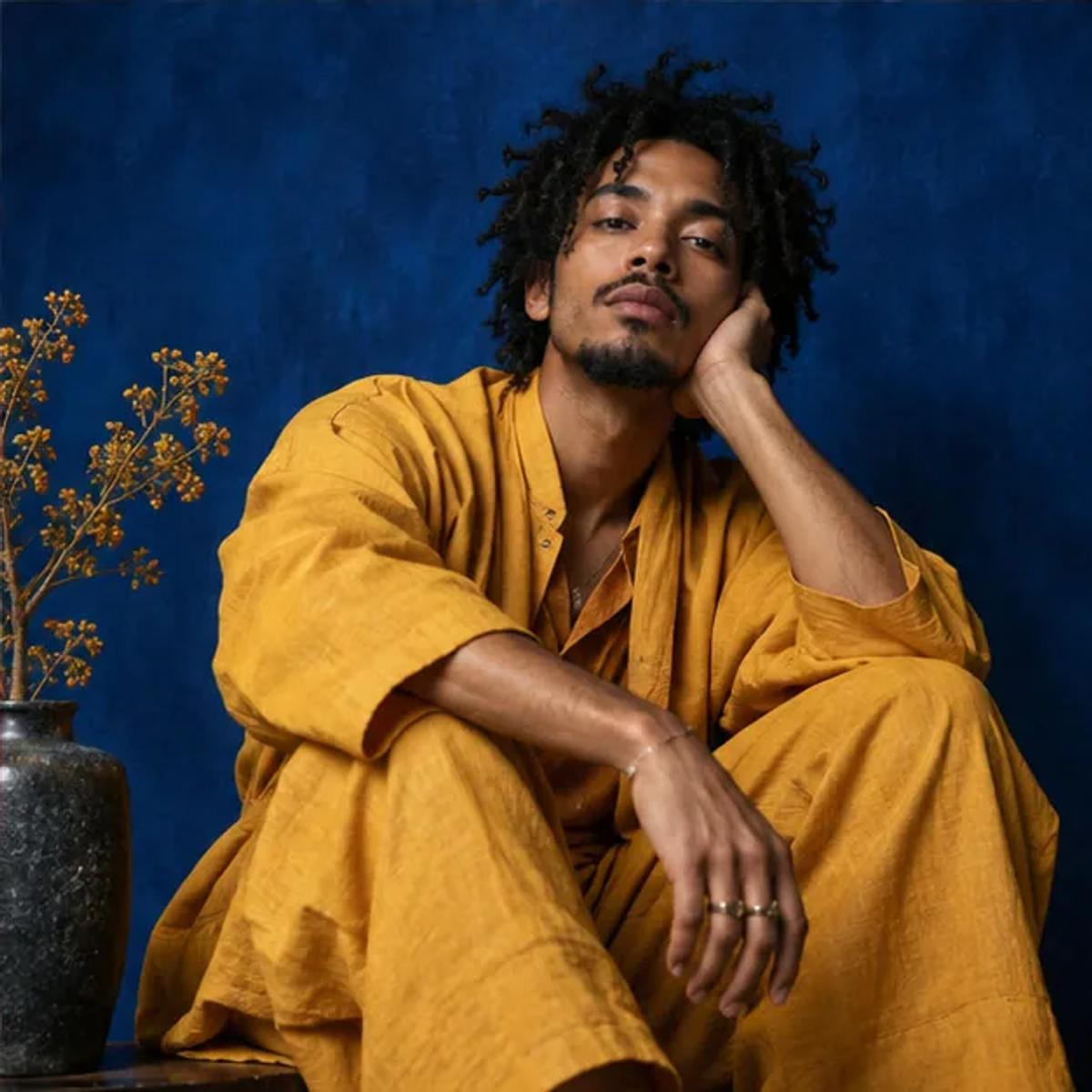
Studio portrait
A confident editorial portrait, vivid yellow jacket, blue studio backdrop, soft directional light

Product scene
An amber perfume bottle on a stone surface, warm natural light, premium product photography
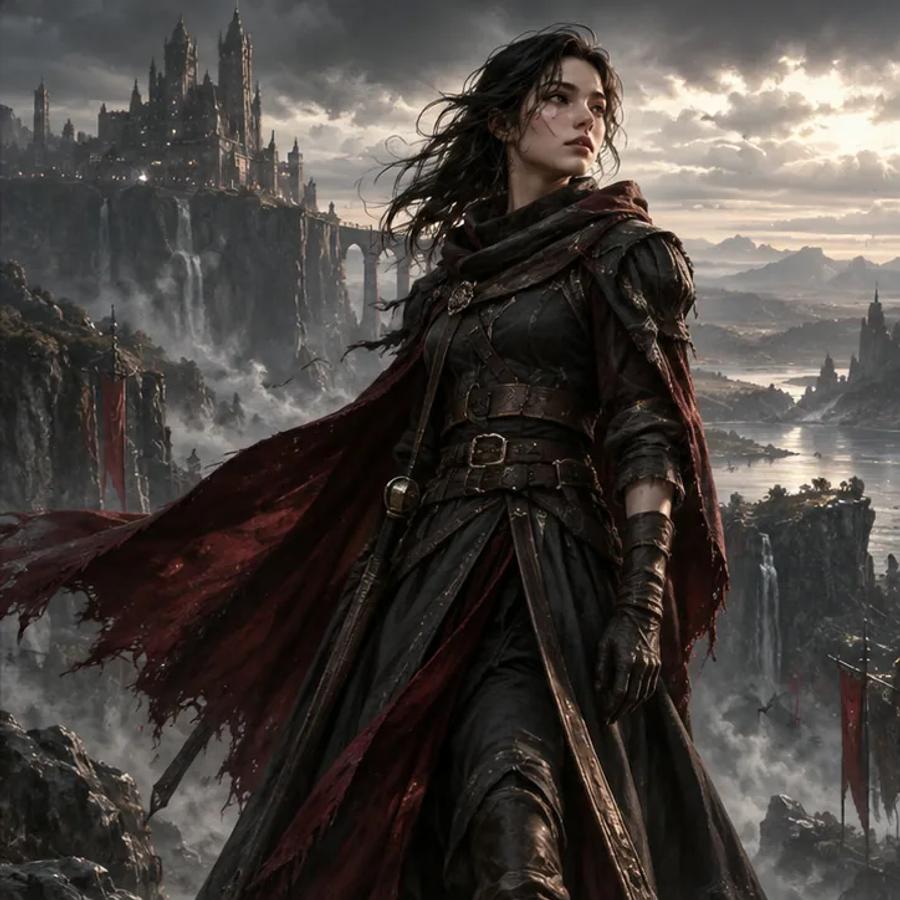
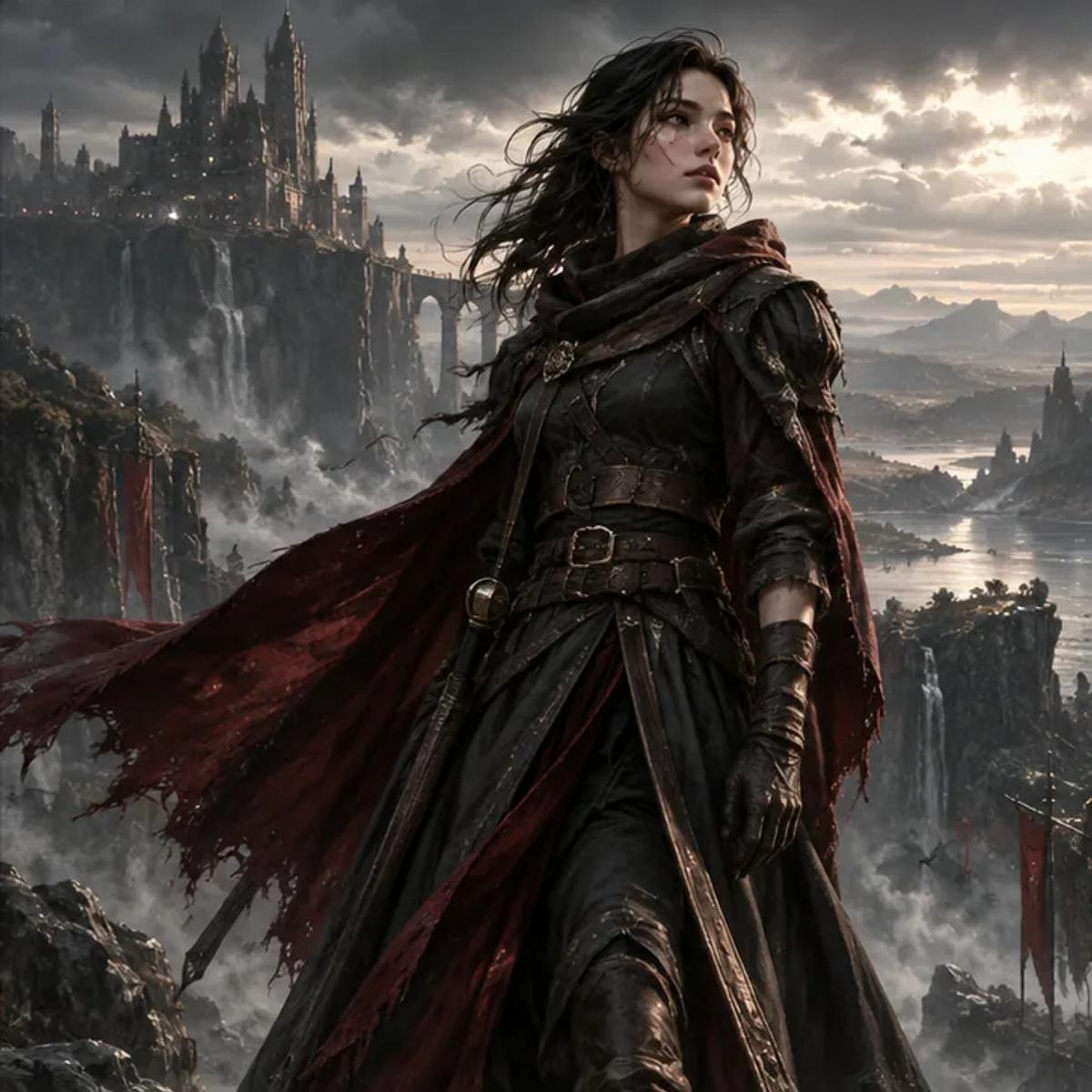
Fantasy world
A fantasy character in a dramatic castle setting, atmospheric cinematic lighting
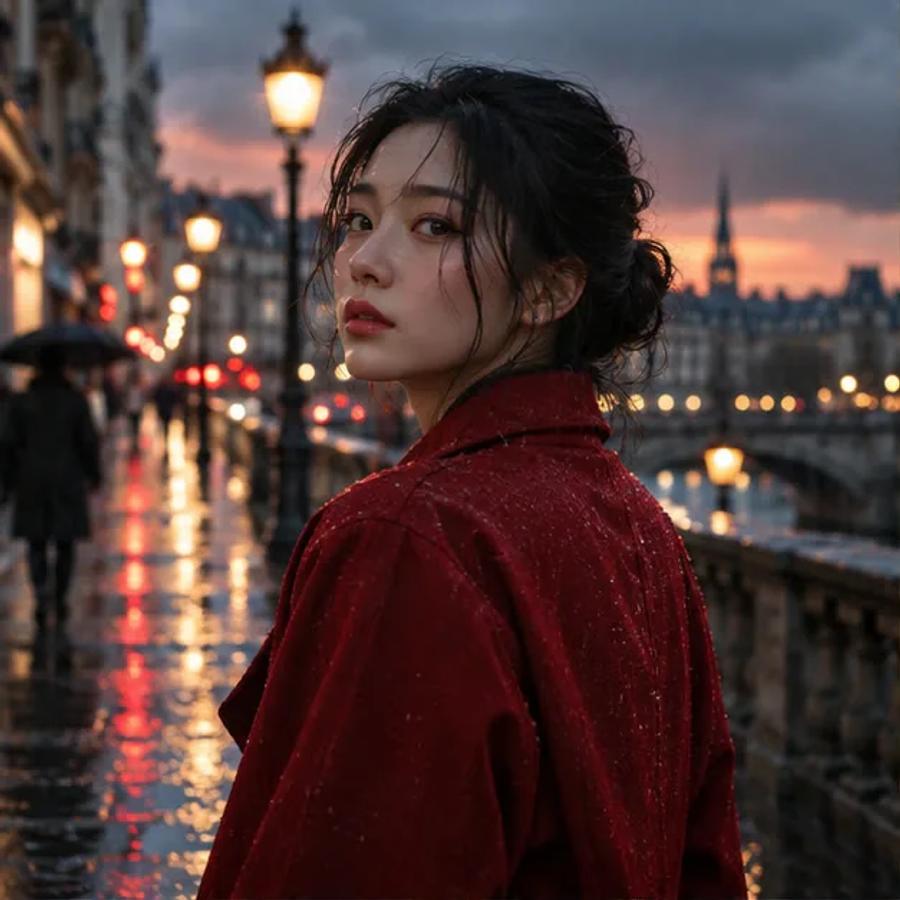
Cinematic moment
A woman in a red coat on a rain-soaked city street, cinematic reflections, evening light
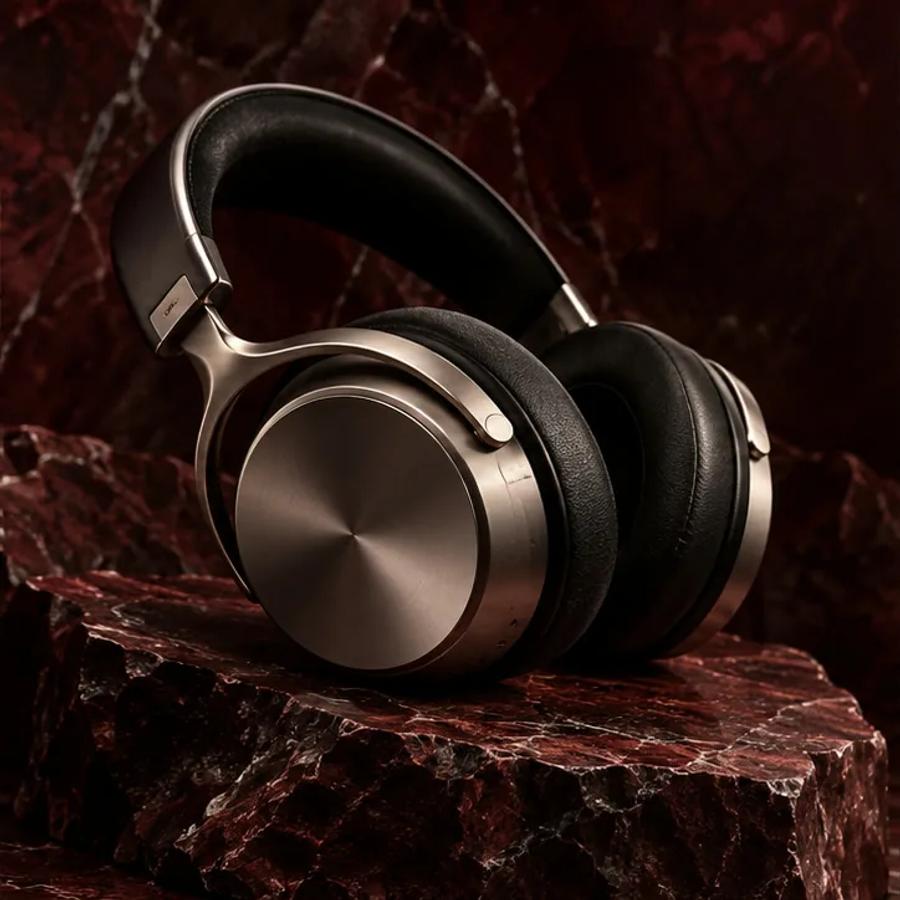
Campaign visual
Premium headphones in a clean campaign composition, subtle highlights, dark background
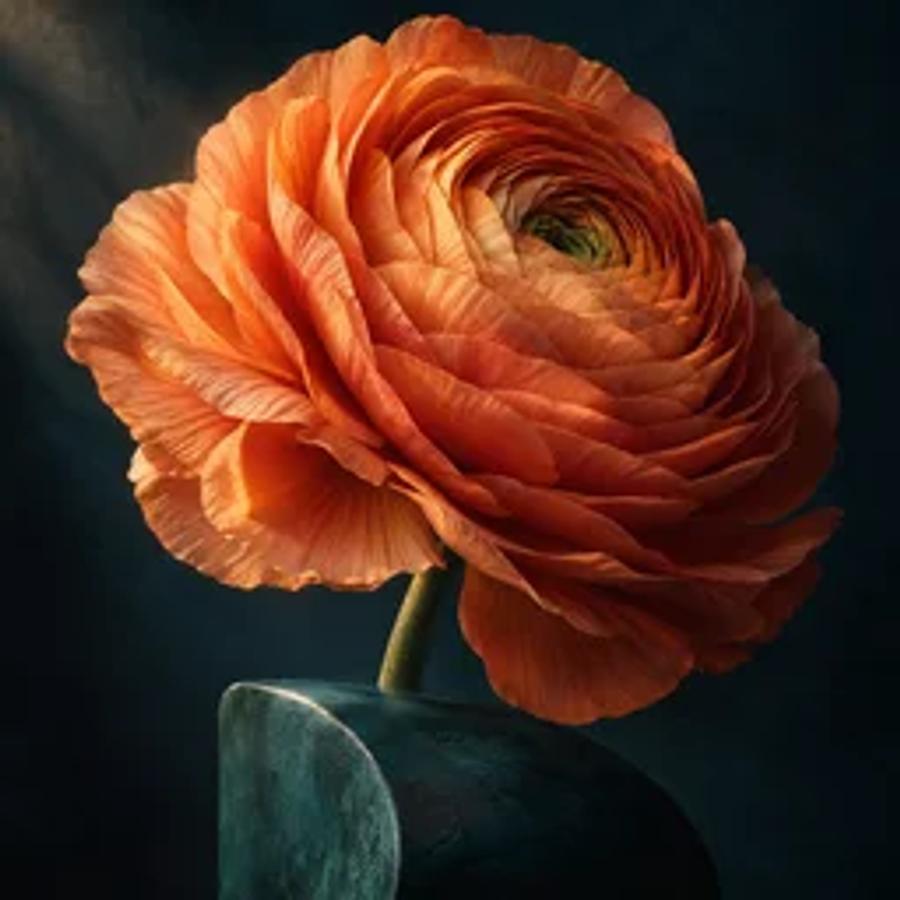
Nature detail
A close-up orange flower, delicate petals, soft background, natural detail
One workspace for your next image idea
Start with a written prompt or bring in a reference image. Vidma keeps the creative controls and generated result together, so you can explore variations without leaving your image workspace.
Turn a description into a visual direction
Write the subject, setting, mood, and details you want to see. A clear prompt gives the selected model a starting point, whether you are exploring a character, a scene, or a concept for a campaign.
Use an image as your starting point
Upload a reference and describe what you want to change. Depending on the model you choose, Image Studio can use one or more images as input, giving you another way to explore an existing idea.

Choose the model and format for the job
Switch between available image models and adjust the supported aspect ratio or resolution before generating. The choices shown in the workspace depend on the capabilities of the selected model.
Made for exploration, from first prompt to next idea
Keep the process focused on the image you want to make, with the available controls alongside your prompt and results.
Begin with words
Describe a subject, scene, or mood and use that text to start an image.
Build on a photo
Add a reference image when you want to work from an existing visual.
Pick an available model
Compare the model options offered in Image Studio and choose one for your task.
Review your result
See the generated image next to the controls and continue refining your idea.
How to create an image in Vidma
Describe your idea
Enter a prompt with the subject, setting, and visual details you want.
Choose your inputs and settings
Select an available model. Add a reference image if you want to start from a photo, then choose supported format settings.
Generate and review
Run the generation and inspect the result in the image workspace. Revise your prompt or settings for another direction.
Frequently asked questions
What can I create in Image Studio?
You can generate an image from a text prompt or, with a compatible model, use an uploaded image as a reference for a new result.
What should I include in my prompt?
Start with the main subject and add useful details such as the setting, lighting, colors, composition, or visual style you want to explore.
Can I start from an existing photo?
Yes. Add a reference image in the creation panel and choose a model that supports image input. The available number of references depends on the model.
Can I choose the size or shape of my image?
Image Studio offers aspect-ratio and resolution choices supported by the selected model. Available options may vary between models.
How do credits work?
The creation panel shows the estimated credit cost for the selected settings before you generate. Review that estimate in the workspace.
Explore more creative workflows
Find the next tool for your image or move from a still visual into another format.
More ways to create
Ready to see where your idea goes?
Open Image Studio, write a prompt, and create your next visual with Vidma.