
A fresh expression. A new look. Still your portrait.
Explore a different expression, hairstyle or visual style with Vidma.AI’s AI portrait editor. Upload one photo, choose an editing effect or describe a custom change, and generate one edited image. Compare it with the original before downloading your result.
- Expression and hairstyle presets
- Retouch and creative styles
- Before-and-after comparison
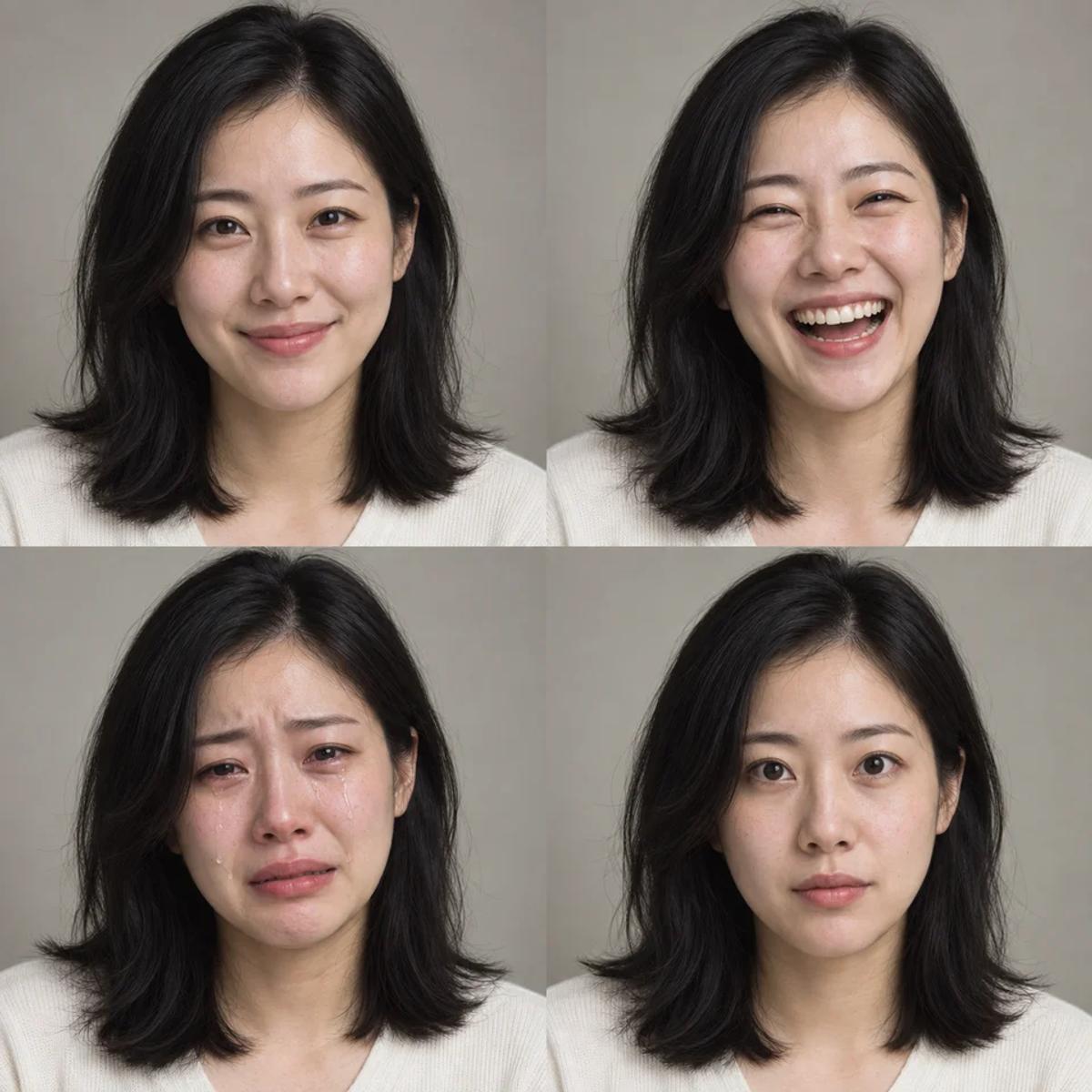
Explore a different expression
Choose Smile, Laugh, Cry or Open eyes to guide an AI edit of your portrait. Start with a clear, single-person photo and an uncovered face. The instructions aim to keep the person recognizable and preserve unrelated details, but AI may redraw parts of the image. These fictional portraits are illustrative examples, not recorded tool results.
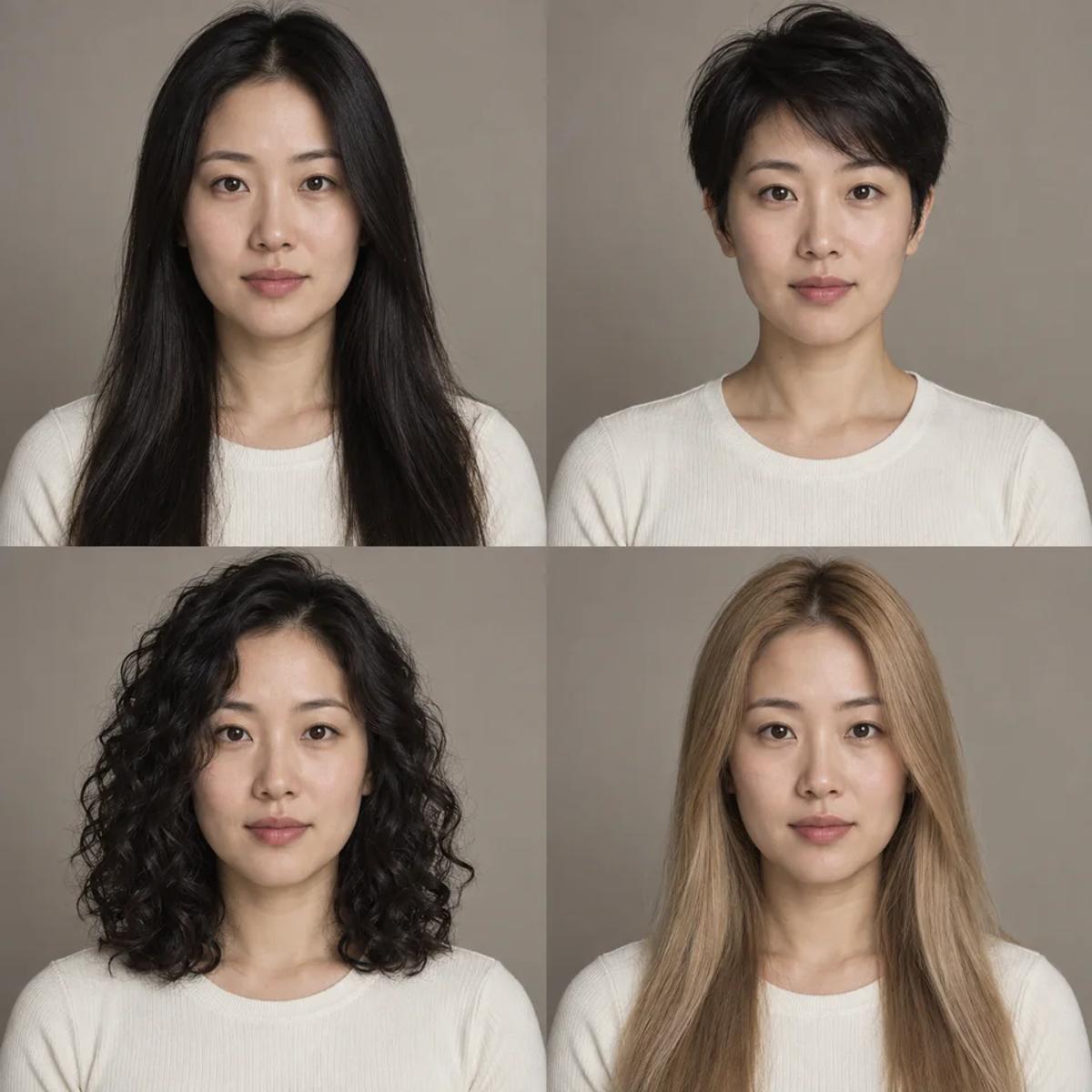
Try a new hairstyle or hair color
Explore long hair, a short haircut or curls, or choose a hair-color edit in blonde, brown, red or silver. Select one effect per task so your instructions stay focused. The result is an AI-generated visual idea, not a guarantee of how a real haircut or hair dye will look. The examples shown here are illustrative.
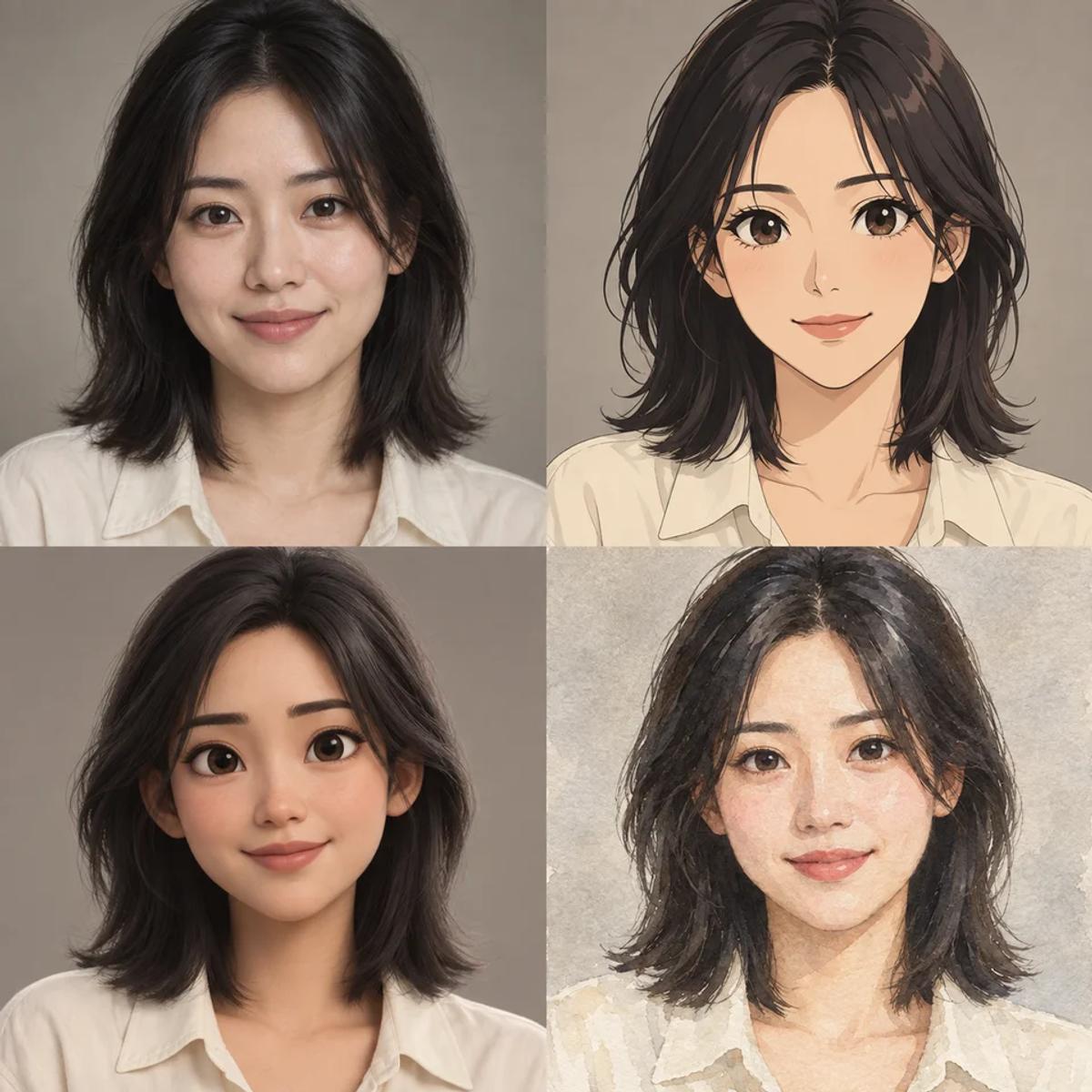
From natural retouching to a creative portrait
Choose Remove beard, Soften wrinkles or Whiten teeth for a focused retouch request. For a different visual direction, choose Realistic, Anime, 3D animation or Watercolor. Prefer your own idea? Custom edit lets you describe a focused change. Review facial features and fine details before sharing; these images illustrate style possibilities rather than actual task outputs.
How to edit a portrait with AI
1. Upload a clear portrait
Choose one single-person PNG, JPG or WebP photo, up to 20 MB. A sharp image with even lighting and visible facial features gives the AI clearer information to work with.
2. Choose one effect
Open Expression, Hair, Retouch or Style and choose a preset. For hair color, select the shade. Or choose Custom and describe the change you want. Keep custom instructions concise; supported prompt limits can vary by model.
3. Review the model and credit estimate
Select an available model and supported aspect ratio and resolution in Output settings. Review the estimated credit cost before selecting Generate edited image. Sign in when prompted.
4. Compare and download
When the task finishes, drag the before-and-after comparison to inspect the edit. Download the image, or upload another photo and try a different effect. Once a task is accepted, you can start another without waiting for the previous result.
Use photos and likenesses you have permission to edit. Keep the face visible and avoid blurry images or group photos. Choose one focused change, then inspect eyes, teeth, hair edges and skin texture in the result. This tool uses generative editing, not a manual brush or mask workflow, and it does not promise exact identity preservation or salon-accurate hair previews.
AI portrait editing FAQs
What can I change in a portrait?
The tool offers Expression, Hair, Retouch and Style presets, plus Custom edit. You can request smiles, laughter, tears or open eyes; try long, short or curly hair and selected hair colors; request beard removal, softer wrinkles or whiter teeth; or explore realistic, anime, 3D animation and watercolor styles. Select one effect per task.
Which photos can I upload?
Upload one PNG, JPG or WebP image, up to 20 MB. Clear single-person portraits with even lighting work best. Avoid sunglasses, heavy face occlusion, motion blur or multiple people.
Can I describe my own portrait edit?
Yes. Select Custom edit and enter your instructions. The field allows up to 1,200 characters; the selected model may have a shorter supported prompt limit. Describe the desired change and keep unrelated instructions to a minimum.
Will the AI preserve the original person exactly?
The editing instructions ask the AI to keep the person recognizable and retain unrelated pose, clothing and background details. Exact preservation is not guaranteed: generation may redraw facial features or other areas. Always compare the result with the original.
How much does a portrait edit cost?
The panel shows the estimated credit cost for the selected model and settings before submission. Available models, aspect ratios and resolutions can vary. Check the current estimate in the workspace rather than assuming edits are free.
Can I return to a task or start another edit?
Yes. Accepted tasks are tracked independently, and recent generation history lets you return to an existing task. Continue checking resumes a pending task without submitting it again. You can prepare another portrait edit once the earlier task has been accepted.
Can I compare and download the edited portrait?
Yes. Use the before-and-after slider to inspect your original upload against the result, then use Download image to save the generated image. Check fine details before sharing it.